
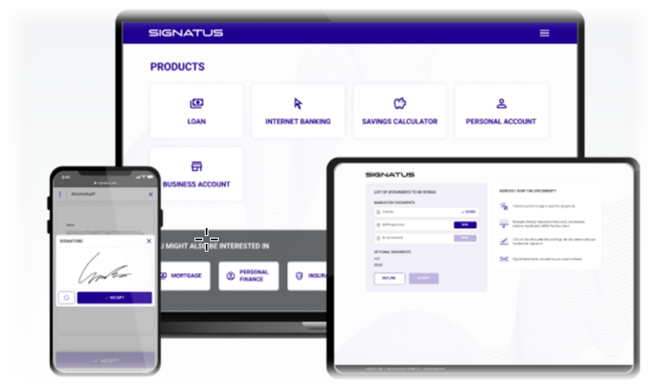
SIGNATUS is an application for signing legally binding documents with a digital handwritten signature.
Signatus collects static and dynamic characteristics of the signature (such as curves and loops, upstrokes, crossings, speed, acceleration, pressure etc.). Collected data is together with a picture of the signature inserted into PDF document, which is digitally locked afterwards to prevent from changes.
SIGNATUS can run completely offline, without additional infrastructure and external integrations.
SIGNATUS can work with documents available on the device or can obtain PDF documents for signing from remote repositories. Integration of SIGNATUS with remote repositories requires simple configuration.
SIGNATUS Standards – The application supports PDF files compliant with ISO 32000 standards. The Signatus application is also Compliant with ISO 19794-7 norm that defines the format of biometric signature data exchange. Any forensic analytical tool can be used to examine handwritten signatures independently from Anasoft.
Requirements:
-Hardware: The application runs on any android device and you can get best experience on Samsung devices equipped with S-Pen technology.
– Software: android version 7.0 or higher is required
– Internet connection: is required for the download and during first start of the application, so SIGNATUS application can automatically connect to Anasoft License Server and obtain valid license.
– NOTE: In order to install the application outside of Google Play, please make sure you have enabled ‘Unknown Sources’ in ‘Settings à Security’ on your device.
1.1 Launching Signatus #
After launching SIGNATUS application, you will see “Welcome screen” followed by “Dashboard”. What you can see on a dashboard depends on the configuration of the application.
1.2 Based Settings #
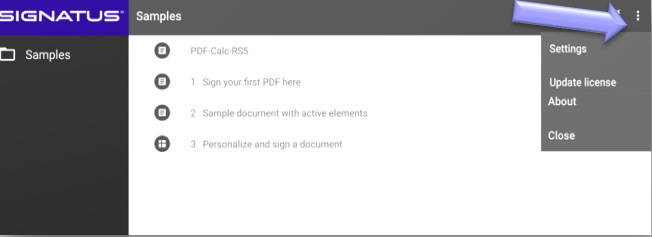
Click on the 3 dots in upper right corner of the screen- the menu window is displayed. This menu contains:
- Settings
- Update License
- About
- Close
1.3 Update your Signatus license #
SIGNATUS comes with default license valid for 14 days. You can try out some features and review the self-explaining Sample documents. As a next step, you can either Activate the Free Trial or update the license you purchased.
- Click on 3 dots in the right upper corner of the screen and select ‘Update License ’. On devices with OS Android 6, you will be required to give permission before you can scan your License QR Code. This has changed since Android 6 has been introduced, where permissions are given when needed. In previous versions of Android OS, all permissions required were requested before the installation of the application.
- You can update your license by scanning the QR code. After a successful License update, a confirmation message will be displayed, and the Application Restart window will open.
- Restart the application by clicking on ‘RESTART NOW.
1.4 About Signatus #

In the ‘About’ section, you can find all the important information regarding the application version, license activation, and expiration date.
1. 5 Settings #
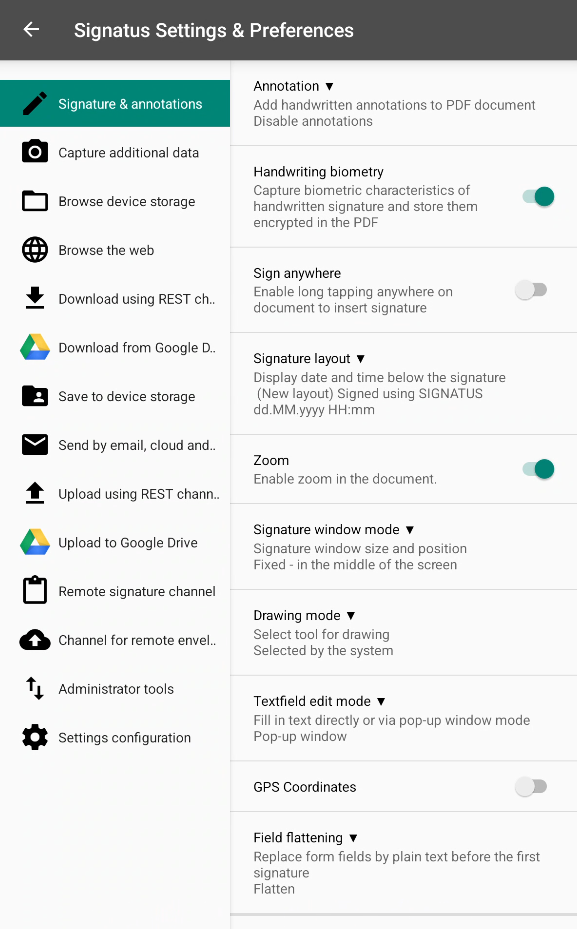
SIGNATUS allows for a wide range of configurations and customization. The following settings are available and enable easy customization of the application:
- Signature & Annotations – Configuration of viewing/signing options and signature validity checks.
- Capture Additional Data – Allows scanning of additional documents (and bundling them into a package with the PDF document).
- Browse Device Storage – Allows browsing for PDF files stored on the device, managing channel settings, and canceling signed documents.
- Browse the Web – Features a web browser to download PDF files, a QR code reader, and URL settings.
- Download using REST channel – Enables downloading documents for signing via the REST interface.
- Download from Google Drive – Enables downloading documents from Google Drive, including channel settings and user authentication states.
- Save to Device Storage – Saves signed documents directly to the device.
- Send by Email, Cloud, and others – Allows sending signed PDF documents via email and other cloud services.
- Upload using REST channel – Settings for uploading signed documents via the REST interface.
- Upload to Google Drive – Settings for uploading signed documents to Google Drive.
- Remote Signature Channel – Allows configuration of the channel, URL, and signatory for remote signatures.
- Administration Tool – Enables exporting/importing settings, welcome screen duration, screen mode/orientation, log settings, file details, and options to move documents from the Outbox.
- Settings Configuration – Allows enabling or disabling all application settings.
1.6 Close the application #

Clicking on the Close option, you Close the application.