Skip to content

  • Documentation
    • Mobile App – Signatus
    • Web App – Signatus 2 API
    • Web App – OKdokument API
    • Web App – OKdokument
  • Contact Us

Customization – Wizard SDK

  • 1. What is a Wizard
  • 2. Introduction to Wizard Javascript API Calls
  • 2.1 Integration
  • 2.2 Document signing
  • 2.3 PDF Document Processing
  • 2.4 Device Features
  • 2.5 Files & Folders
  • 2.6 Application Features
  • 2.7 System Utilities
  • 3. Example: Simple process

Customization – PDF & Form Preparation

  • PDF Forms creation
  • 1. Tags
  • 2. Acrofields
  • 3. Sample document

Integration – REST API

  • 1. Introduction
  • 2. Download
  • 3. Upload

Integration – App-to-App

  • 1. Introduction
  • 2. How does it work?
  • 3. START-ACTIVITY-FOR-RESULT (APP – SIGNATUS – APP)
  • 4. Sending data to Master Wizard via Intent
  • 5. Runtime Configuration Parameters (Display, Fields, Signing Process)

Hardware

  • 1. Android
  • 2. iOS / iPadOS
  • 3. Windows

Signatus user manual

  • 1. Introduction
  • 2. Main menu
  • 3. Signing
  • 4. Submit signed document
  • 5. Settings in detail
  • 6. Example Wizard
View Categories
  • Home
  • Documentation
  • Mobile App - Signatus
  • Signatus user manual
  • 6. Example Wizard

6. Example Wizard

We will now look at the “Example Wizard” to demonstrate some of the functionalities that wizards offer.

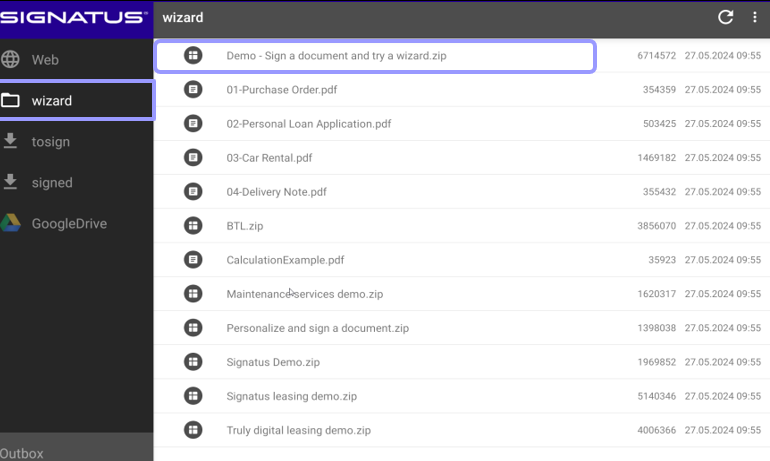
As mentioned above, a wizard is a .zip file. You can initiate it by clicking on the file in the list of documents available for signature.
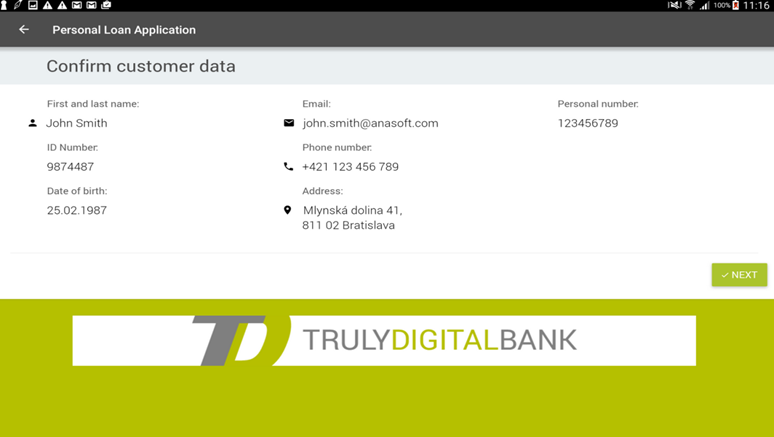
The Example Wizard is designed to guide couriers through every step of a sample delivery process. As the first step, the customer must confirm that the displayed data is correct. By clicking “Next”, the user will proceed to the following step.
Package password has to be entered at this step. Password was sent to customer via SMS.
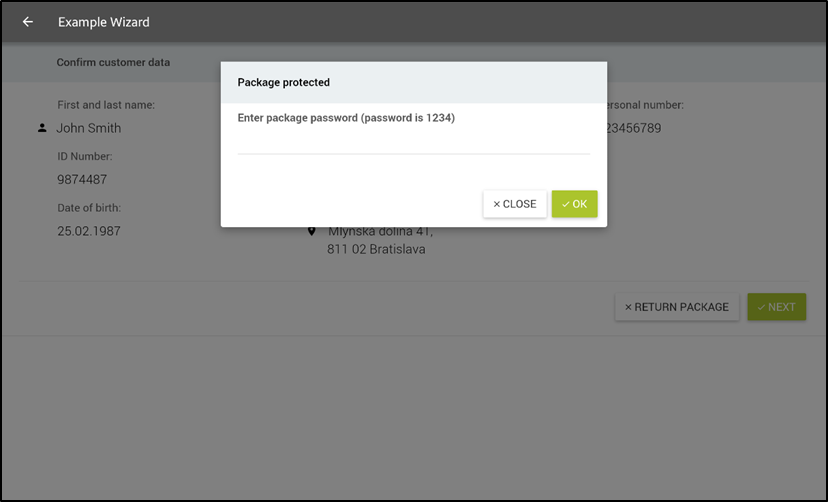
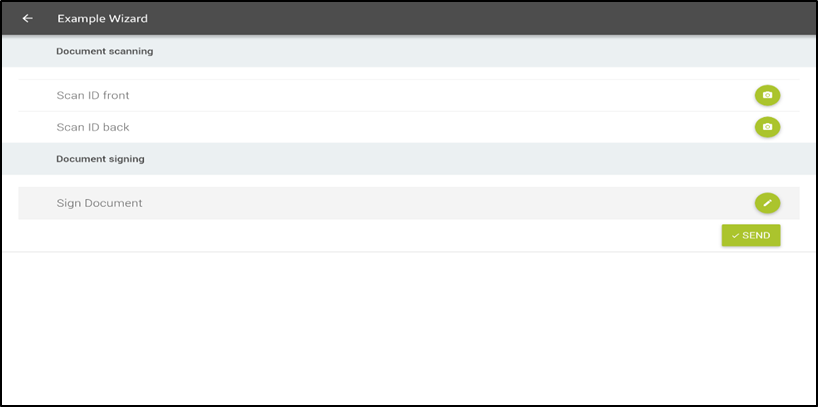
Correct password will open package with steps to be completed and document to be signed with customer data.
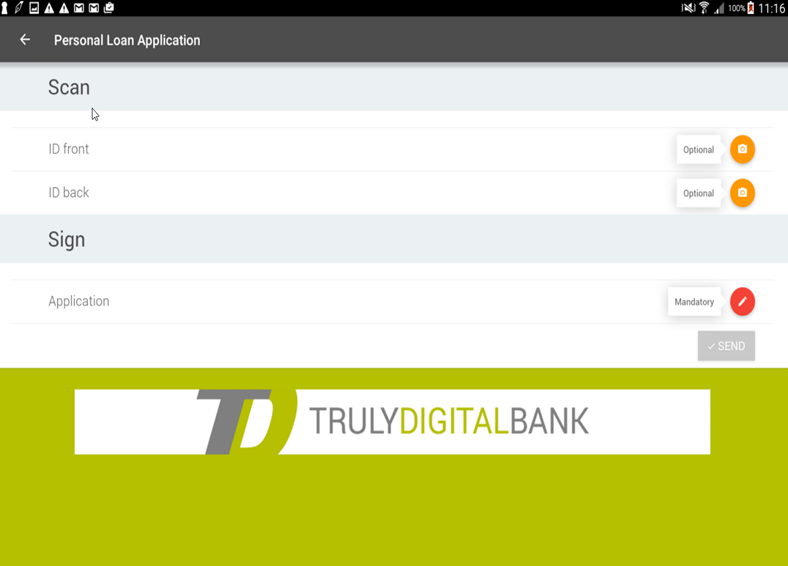
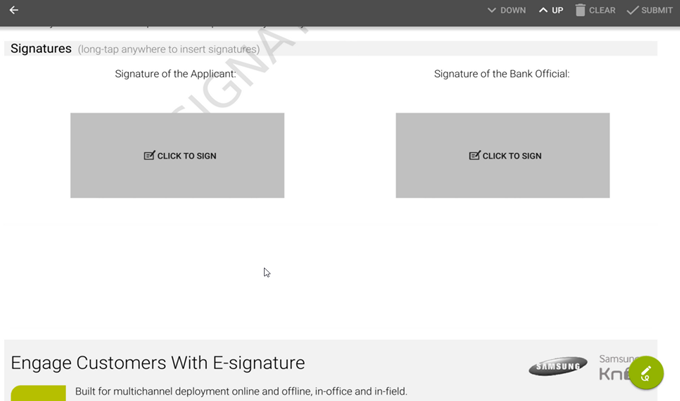
Once scanning of documents of customer is complete and document is signed, the package can be distributed via one of the channels available, the same way as when signing PDF document outside the wizard (explained in section 4.2 SUBMITTING SIGNED DOCUMENT)
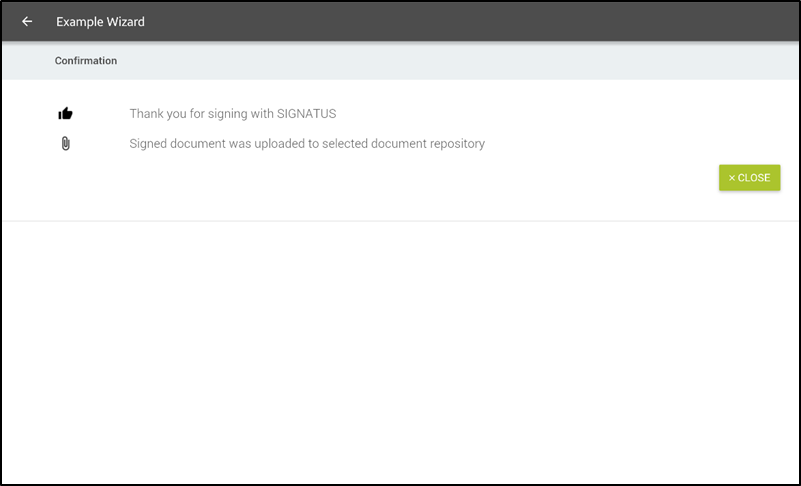
Successful submission of the document to selected repository is confirmed at the end and wizard can be closed.
Similar wizards can be created and customized according to your needs.

Updated on 15/01/2026
5. Settings in detail
  • Documentation
    • Mobile App – Signatus
    • Web App – Signatus 2 API
    • Web App – OKdokument API
    • Web App – OKdokument
  • Contact Us
Proudly powered by WordPress