
List of Settings available in SIGNATUS with detailed description:
5.1 Signature & annotations #
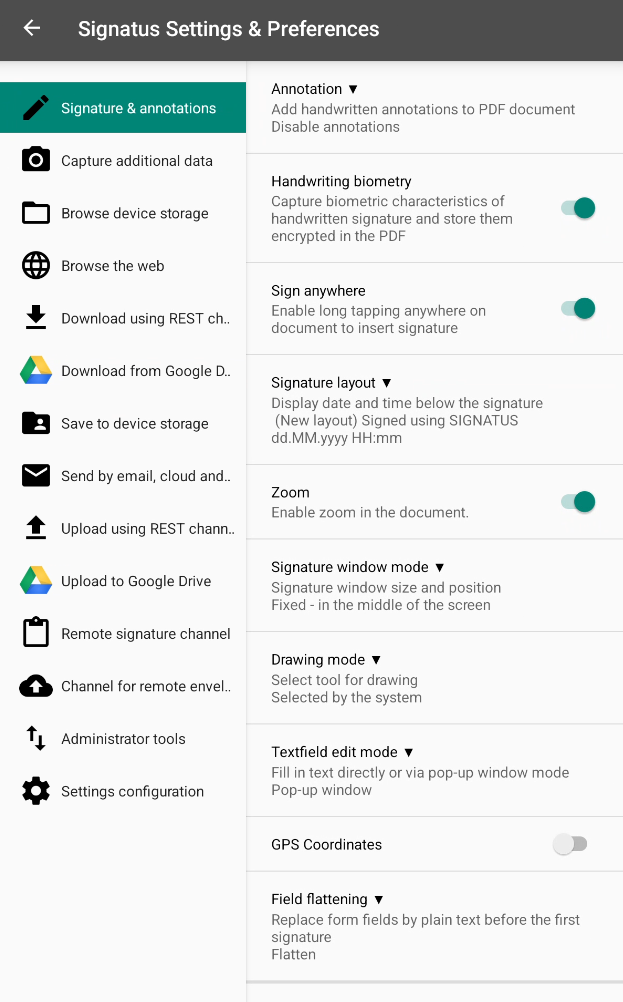
Annotation – Enables the addition of handwritten notes to a PDF document (either anytime or until the first signature is placed), e.g., to write a full name by hand or add simple comments.
NOTE: Annotations are only available until the first signature is placed if the option “Enable annotations up to first signature” is selected.
Handwriting Biometry – Controls the capture of biometric characteristics of the signature and stores them in encrypted form within the digital signature inside the PDF.
NOTE: This option requires a valid public key to be deployed with the application.
Sign Anywhere – Enables signing anywhere on the document by long-tapping with an S-Pen.
NOTE: If this option is disabled, only predefined signature fields in the PDF can be used.
Signature Layout – Adds the date and time to the signature.
Zoom – Enables zooming in on the document.
Signature Window Mode – Allows you to configure the signature window. It can be set to a fixed position in the middle of the screen or inline, matching the size and position of the acrofield.
Drawing Mode (System, Pen, Finger) – The best option is selected automatically based on the device, but it can be changed manually if needed.
GPS Coordinates – If enabled, coordinates are recorded for each signature and stored in the PDF document under Signature Properties.
Field Flattening – Provides an option to change the state of Acrofields after a signature is entered (from flattened to read-only), enabling data extraction from the signed PDF.
Check Signature Completeness – Verifies if the entire signature was captured within the designated signing area.
Enable PDF Calculation with JavaScript – Activates PDF calculations using JavaScript within the application.
5.2 Capture additional data #
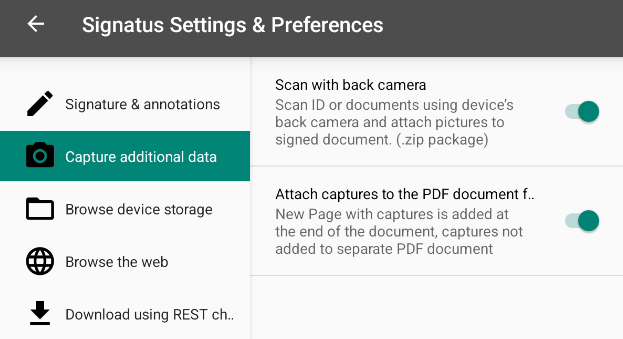
Scan with back camera – Enables scanning documents (e.g., IDs) and attaching the scans as a separate PDF document, which is submitted along with the signed document in a .zip package.
Attach captures to the PDF document for signature – Enables scanning documents (e.g., IDs) and adds a new page containing the scans directly to the end of the signed document.
5.3 Browse device storage #
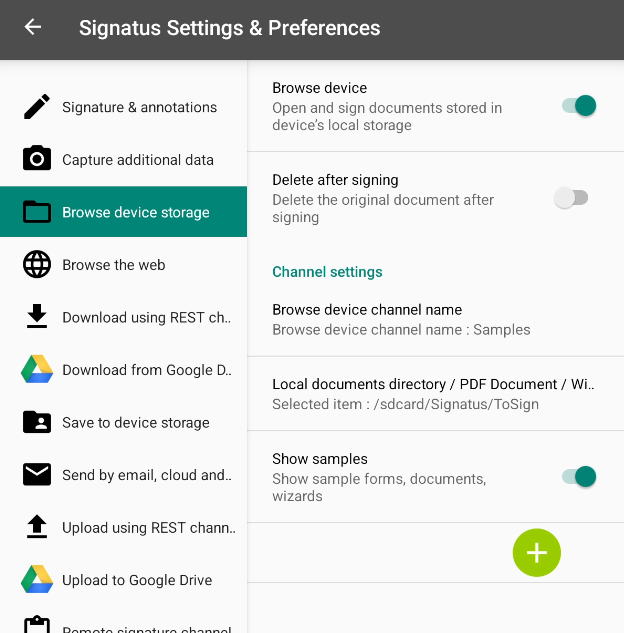
- Browse Device – Used when documents for signature or wizards are present on the device. When enabled, the option to browse files on local storage is available in the main menu.
- Delete after signing – If enabled, the original (unsigned) file or wizard is deleted from the list once the PDF document has been signed.
- Browse device channel name – Allows you to rename the channel according to your needs.
- Local documents directory / PDF Document / Wizard – Enables the user to configure whether to display a list of documents from a selected folder or to directly open a specific Wizard or PDF when the “Device Storage” channel is selected in the main menu.Tip: This allows you to use SIGNATUS as a dedicated (single-purpose) app that runs a specific process defined by a wizard. Simply enable the “Device Storage” channel and select one specific Wizard.
- Show samples – Makes sample forms, documents, and wizards visible in the “Browse device storage” folder.
- Multiple Channels – You can configure multiple channels for documents saved on your device storage by clicking the “+” icon in the bottom-right corner.
5.4 Browse the web #
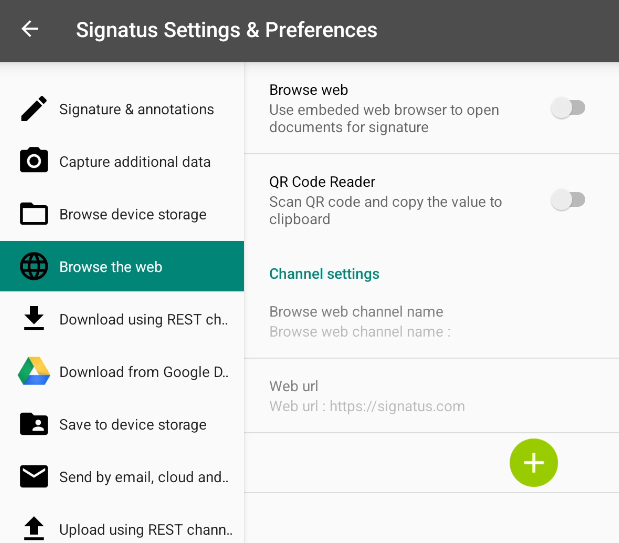
Browse the Web – When enabled, the user can access a simple embedded web browser that opens the URL defined in the “Web URL” settings. The browser follows all links on the page unless a link ends with a “.pdf” suffix. In that case, the PDF document is downloaded into the application and immediately opened for reading and signing.
QR Code Reader for Web – Enables you to paste a value scanned from a QR code into a web form, which can be used, for example, to activate a new customer’s account.
Browse Web Channel Name – Allows you to rename the channel according to your needs.
Multiple Web Channels – You can configure multiple web channels by clicking the “+” icon in the bottom-right corner.
5.5 Download using REST channel #
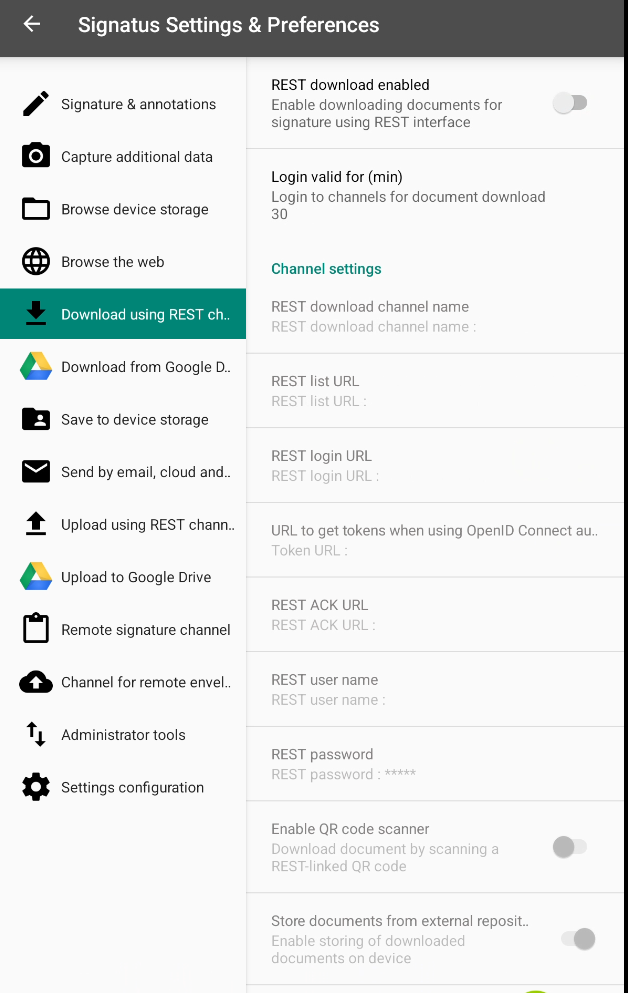
- REST Download Enabled – Allows you to retrieve PDF documents from document repositories via the configured REST interface.
- Endpoint Configuration – At a minimum, the URL for list must be configured. Additionally, URLs for login, acknowledgment (ack), and OpenID Connect can be provided.
- Authentication – The username and password can be pre-configured in the settings and will be used for authentication. If these are not defined, the user will be prompted to log in via a pop-up window when selecting the REST channel for download.
- Store Documents from an External Repository – If disabled, documents can be opened from the external repository, signed, and uploaded back, but they cannot be stored locally on the device.
5.6 Download from Google Drive #
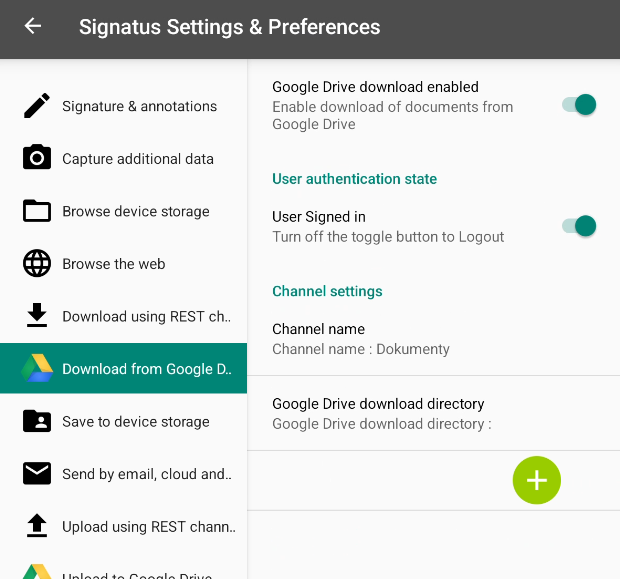
- Google Drive download enabled allows obtaining PDF Documents from Google Drive
- User authentication state – setting the user status of the logged-in user or hide logout
- Google Drive download directory should be specified to access PDF Documents in the selected directory. If not specified, the user is routed to the Root folder of Google Drive
5.7 Save to device storage #
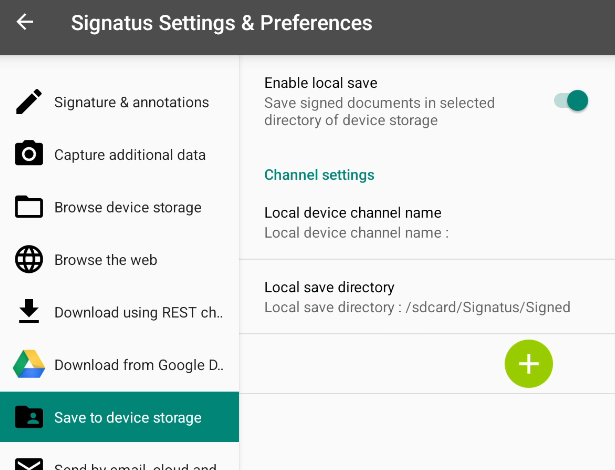
Enable Local Save – Allows you to store signed documents on your device. This requires a ‘Local save directory’ (or multiple directories) to be defined.
NOTE: The application requires write access to this folder (typically on the SD card or internal storage).
5.8 Send by email, cloud and others #
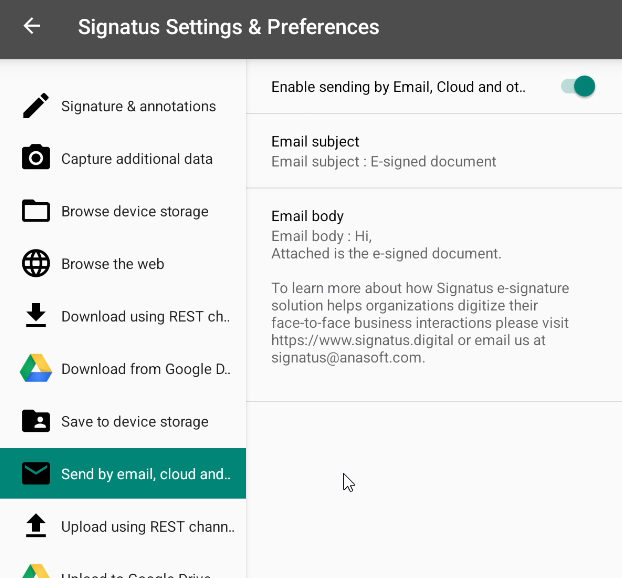
Enable sending by Email, Cloud, and others – If enabled, after pressing ‘Submit’ in the document view, all available email, cloud, and other sharing clients are displayed. You can then choose whether the document is sent via email, uploaded to the cloud, or opened in another available application.
Subject – The email subject consists of the actual document name plus the text defined here in the settings. If no subject is defined in the settings, only the document name will be used.
Body – This text is used if an email client is selected and the signed document or package is sent via email.
NOTE: For some cloud uploads (especially Dropbox), it is recommended to leave the subject and body fields empty in the settings to avoid compatibility issues.
5.9 Upload using REST channel #
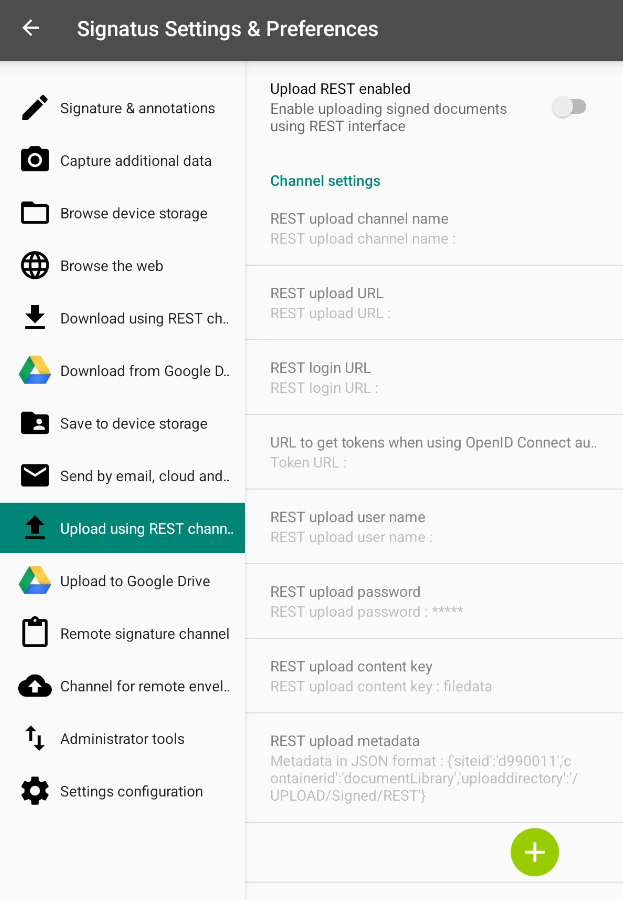
Upload REST enabled allows distribution of signed documents via REST Interface to one or more external document repositories.
5.10 Upload to google drive #
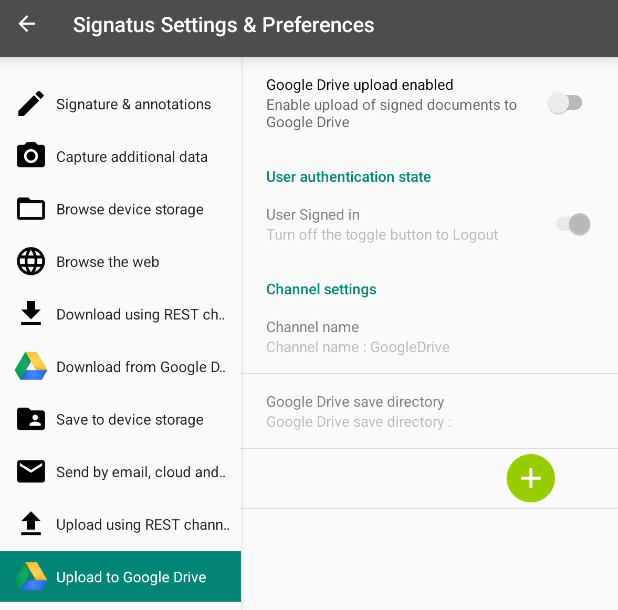
Google Drive Upload Enabled – Allows the distribution of signed PDF documents to the Google Drive of a selected Google account.
User Authentication State – Used to manage the status of the logged-in user or to hide the logout option.
Channel Settings – Contains settings for the Google Drive account name, which must be defined to enable the upload of signed PDF documents. A specific Google Drive save directory should be defined; if it is not specified, PDF documents will be saved to the Root folder of Google Drive.
5.11 Remote signature channel #
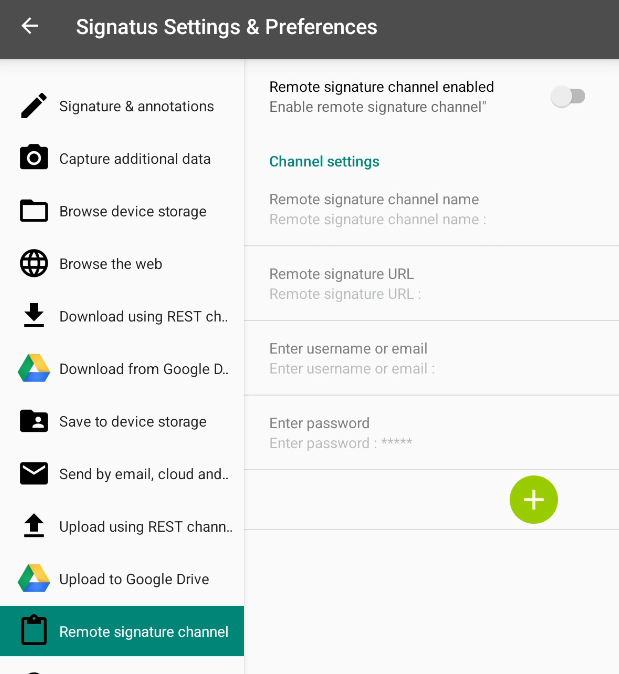
- Remote Signature Channel Enabled – Enables the remote signature functionality.
- Channel Settings – Allows you to configure the remote channel name, remote signature URL, username, and password.
5.12 Channel for remote envelope #
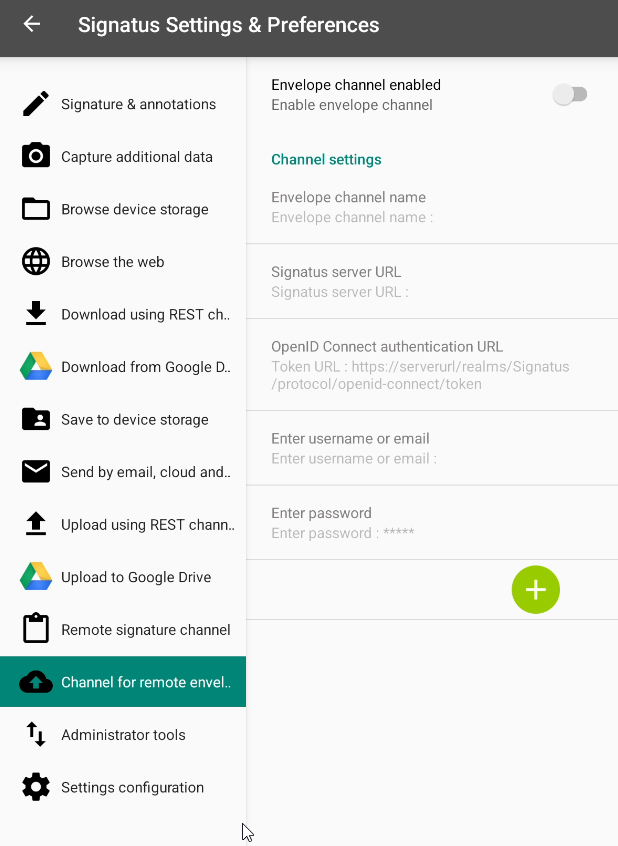
Channel for remote envelope – Enables the distribution of document envelopes to a remote server for processing or signing.
Envelope channel enabled – Activates the remote envelope functionality in the application menu.
Channel settings – Allows you to configure the connection to the server:
- Envelope channel name – Allows you to set a custom name for this channel.
- Signatus server URL – The endpoint address of the Signatus server used for envelope distribution.
- OpenID Connect authentication URL – Defines the token URL for secure authentication via the OpenID Connect protocol.
- Username or email – The credentials used to log in to the remote server.
- Password – The password for the specified account.
Add Channel (+ icon) – Allows you to configure multiple remote envelope channels by clicking the green plus icon.
5.13 Administrator tool #
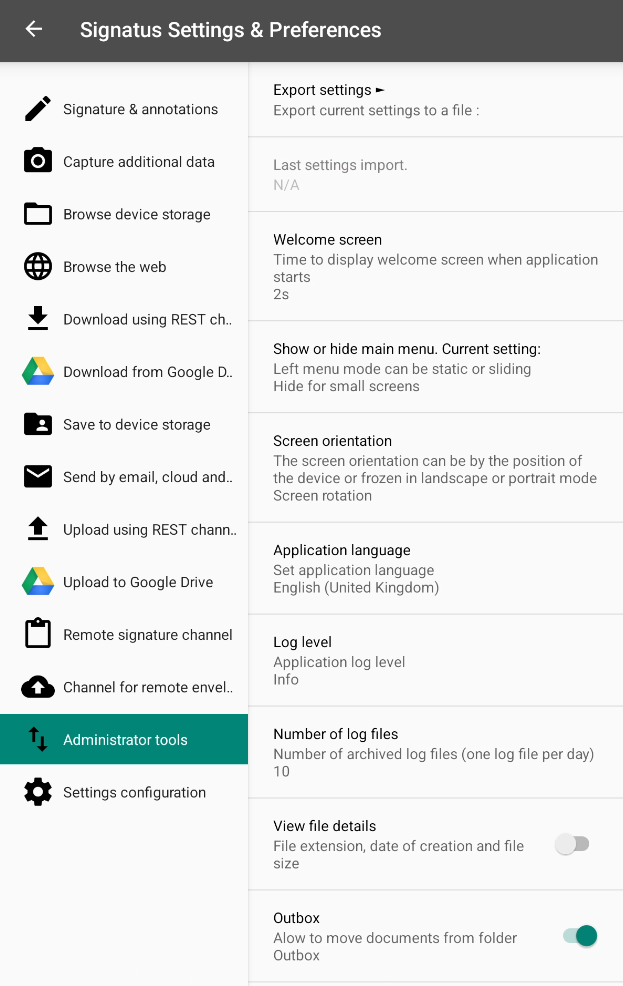
Export Settings – Saves all preferences and settings into a backup file. This file can be used for recovery or distributed to other devices to ensure consistent configuration.
- To Export Settings: Go to Settings – Administrator Tools – Export. Once the export is successful into the file (com.anasoft.signatus.app_preferences.xml), file can be found in the following folder: \Tablet\Android\data\com.anasoft.signatus.app\files\Export.
- To Import Settings: Copy the exported file into the following folder on the device: \Tablet\Android\data\com.anasoft.signatus.app\files\Import. Note: Please restart the application to apply the imported settings.
Welcome Screen – Sets the duration for which the initial welcome screen is displayed.
Show or Hide Main Menu – Allows you to decide whether the side menu is displayed at all times or remains hidden.
Screen Orientation – Allows the screen to rotate automatically according to the device’s position or to be locked in landscape or portrait mode.
Application Language – Enables the selection of the preferred application language.
Log Level – Defines the detail of system logging:
- Debug: Records routine, insignificant events (e.g., page rendered, file downloaded).
- Info: Records significant but normal events (e.g., system start/stop).
- Warn: Indicates unexpected events that do not stop execution but may suggest potential future errors (e.g., missing configuration file where defaults were used).
- Error: Indicates a task failure (e.g., email not sent, data not stored). Something has definitively gone wrong.
Number of Log Files – Sets how many daily log files are stored. For example, if set to 60, logs from the previous 60 days will be kept.
Upload Log – Tap here to upload the log file via one of the available distribution channels.
View File Details – If enabled, the file list will display the file extension, size, and creation date next to the file name.
Outbox – If enabled, allows you to move documents waiting in the Outbox back to the Signed folder (\Tablet\Signatus\Signed).
5.14 Settings configuration #
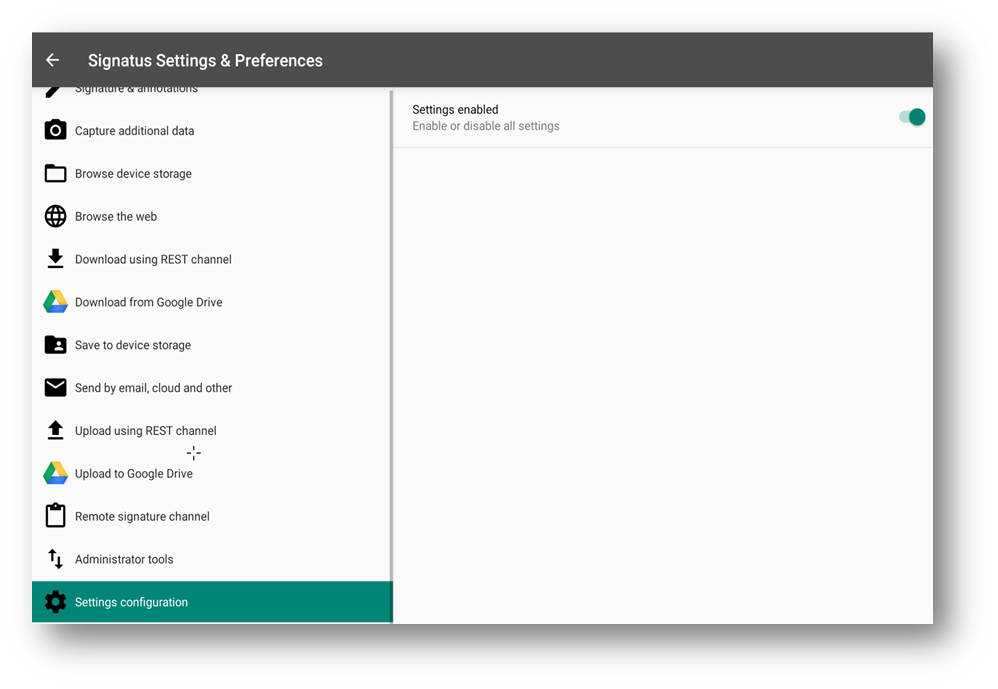
Settings enabled allow for settings of application to be disabled for the user, password required (password provided with license).
5.15 Change the language #
SIGNATUS is currently available in the following language versions:
- Android
- English
- German
- Slovenčina
- Čeština
- Polish
- Turkish
- Portuguese (Brazil)
- Bulgarian
To change the language of the SIGNATUS application, please change the system language of the Android OS in your device settings: Settings – Language & input – Languages. If SIGNATUS is running in the background, you must restart the application to apply the changes.