
Once all required signatures have been placed on the document, it is ready to be submitted.
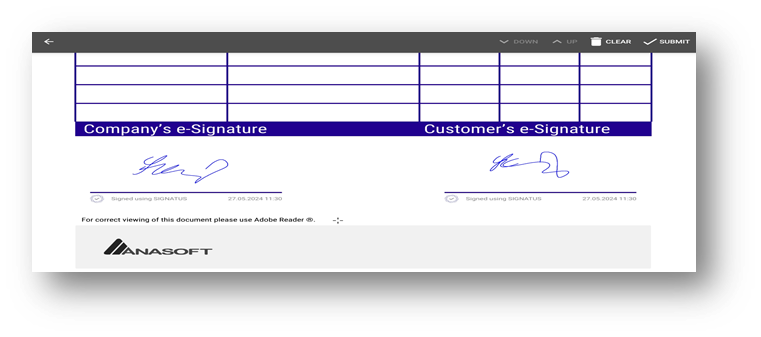
4.1 Before document is submitted #
Before submitting, the signed document can still be modified by pressing the ‘Clear’ button to delete all signatures. Once cleared, the document is re-generated using the same customer details.
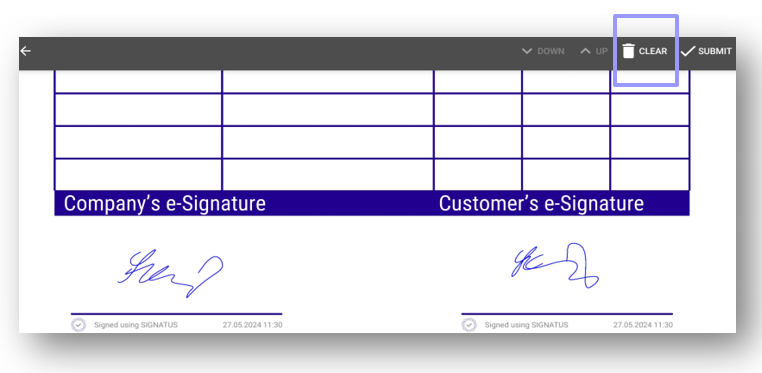
4.2 Submit #
Once all required signatures have been placed, you can distribute the signed PDF document (or .zip package) by pressing the ‘Submit’ button. Depending on the application’s configuration, clicking ‘Submit’ will result in one of the following:
a) Automatic Storage: If only one distribution option is configured, the document is automatically stored on the device or uploaded to an external repository.
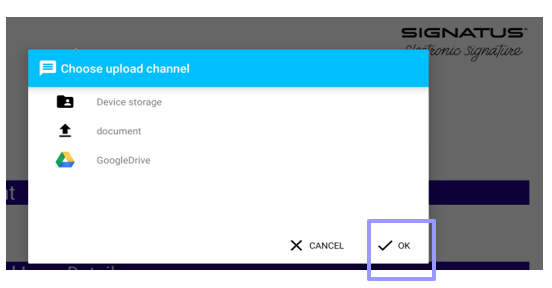
b) Choose Upload Channel: If multiple channels are configured, you can select where the signed document will be stored. All available distribution channels will be displayed. You can choose from the following (channel names can be customized to meet your needs):
- Device Storage – Stores signed PDF files in a predefined folder on your device.
- REST – Allows you to upload signed documents to external repositories using REST services. Multiple REST channels can be configured.
- Google Drive – Allows you to upload signed documents to a specific Google Drive directory linked to the account selected in the settings.
Please select your preferred channel and click ‘OK’.
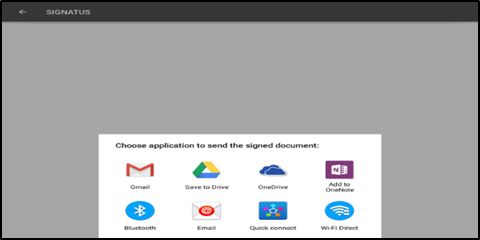
In addition to distributing the document via the selected channel, it can also be sent by email, uploaded to the cloud, shared via Teams, or distributed to other apps available on your device.
- Once distributed via the selected channel, if the “Send via email, cloud, or other” feature is enabled, you can share the signed document or package via email clients, cloud services, shared drives, etc. Please select one of the available options. If you click outside the selection menu, the upload via email or cloud will be cancelled.
If there is no internet connection at the time of upload, the document will be uploaded to the selected repository or application once the connection is restored.
4.3 Outbox #
If you are online and the external repository (REST) is available, the package is uploaded immediately after the document is signed and the ‘Submit’ button is pressed.
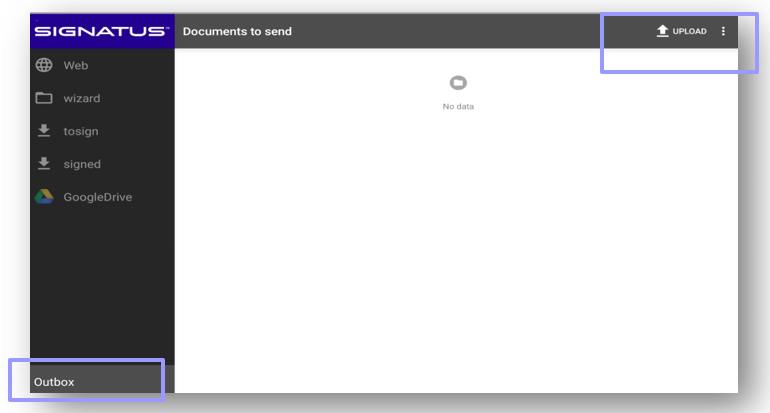
If you are offline, you will notice an increase in the number of documents in the ‘Outbox’ once the PDF is submitted. Documents waiting in the Outbox are uploaded automatically as soon as the internet connection is re-established.
NOTE: The upload of signed documents is initiated automatically on a regular basis or when you press ‘Upload’. You can click on the ‘Outbox’ folder to view a list of documents waiting to be uploaded.
The Outbox is displayed in the menu only if at least one external upload option (REST, Google Drive) is enabled in the settings.
4.4 Re-open & re-sign document #
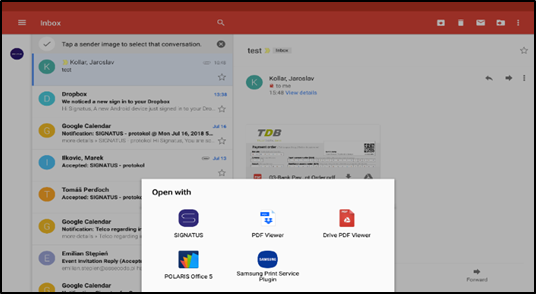
Signed and sent document can still be re-opened from the email client or from device storage by selecting SIGNATUS app as the application to open the document.
4.5 View signed document #
When storing signed documents on a device (tablet or mobile), you can connect the device to your PC via a USB cable. You will find the signed documents in the following folder: \Tablet\Signatus\Signed.
This is the default folder for storing signed documents and can be changed in the settings if needed. Please see the next chapter for more details.
If documents are stored in an external repository via REST, uploaded to the cloud, or sent via email, the signed files can be found in the respective repository or application.