
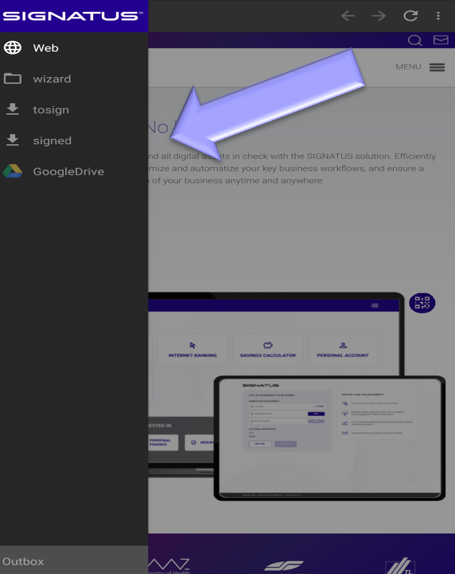
The main menu of SIGNATUS is shown on the left side and enables you to:
- Open and Sign documents from various sources.
- Distribute signed documents via email, to an external server or save them on your device.
- Configure SIGNATUS application via Settings.
2.1 Open document #
Documents for signature can be obtained from various sources – can be stored on your device (Form, Device Storage) or opened from one of the external sources available (Web,wizard, REST, Cloud).
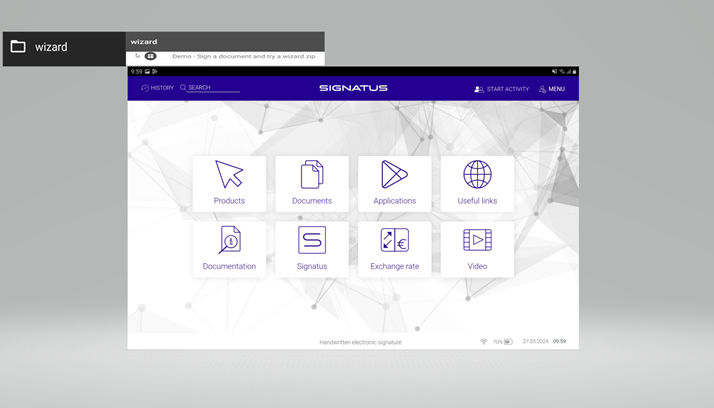
- Wizard is a .zip file list of documents for signature.
- Web – allows you to browse and download PDF files via an embedded web browser using HTTP protocol.
- Download from Google Drive– allows you to link SIGNATUS with your Google account and sign documents stored in your Google Drive.
- Browse Device Storage – Allows you to locate PDF documents for signature within your device’s storage folders.
- REST – allows you to query external services for PDF files using REST services
- Email, Cloud and Other – allows to sign documents from email, cloud (especially Google Drive) or other applications.
2.2 Wizards: Create Your Own Signing Process #
With Wizards, you can easily customize SIGNATUS according to your business needs. You can tailor the look and feel of the application, define document signature and capture workflows, and implement business logic, data verification, and security steps.
This functionality allows for the orchestration of complex business logic and workflows, both before and after documents are signed. Since the wizard is executed within a full-screen web view, the customization options are limitless (e.g., obtaining additional metadata from a remote server via AJAX calls, using jQuery, etc.).
You may refer to the example wizard (exampleWizard.zip) provided with SIGNATUS as a starting point for developing your own signing process.
2.3 Downloading and Opening Documents from the Web #
SIGNATUS allows you to open and sign documents directly from websites configured in the Web channel settings.
2.4 Open the document from Google drive #
SIGNATUS can be linked with your Google account to sign documents stored on Google Drive. Once the Google Drive channel is configured in settings, it is added to the dashboard. Clicking the Google Drive channel opens a pop-up window where you can select a document to be signed. To open the document for signature, mark the document (you can go to different folder as well) and click on ‘SELECT’.
2.5 Device Storage – Opening Documents Stored on Your Device #
You can locate PDF documents for signature within the Device Storage folder on your device.
This feature also allows you to download documents from external repositories while connected to the internet (e.g., in the office) and store them locally. Once saved to the Device Storage folder, these documents can be opened and signed even when no internet connection is available (e.g., in the field or at a customer’s site).
2.6 REST Interface #
SIGNATUS enables querying external REST services to retrieve PDF documents for signing.
2.7 Opening Documents from Email, Cloud, or Other Appsv #
SIGNATUS allows you to sign documents directly from email, cloud storage, or other applications where PDF documents are stored. To open a document, simply select the file and choose Open with SIGNATUS.
2.8 Signing Your Own Documents #
You can connect your device (tablet or mobile) to a PC via a USB cable and manually upload documents for signature. To do so, copy the PDF document to the following folder on your device:
\Tablet\Signatus\ToSign
Once copied, the PDF document will be available in the Device Storage folder within the SIGNATUS application.
Additionally, you can sign your own documents stored in the cloud, attached to emails, or hosted in external repositories configured via REST channels.